
Create a transparent PNG for a design
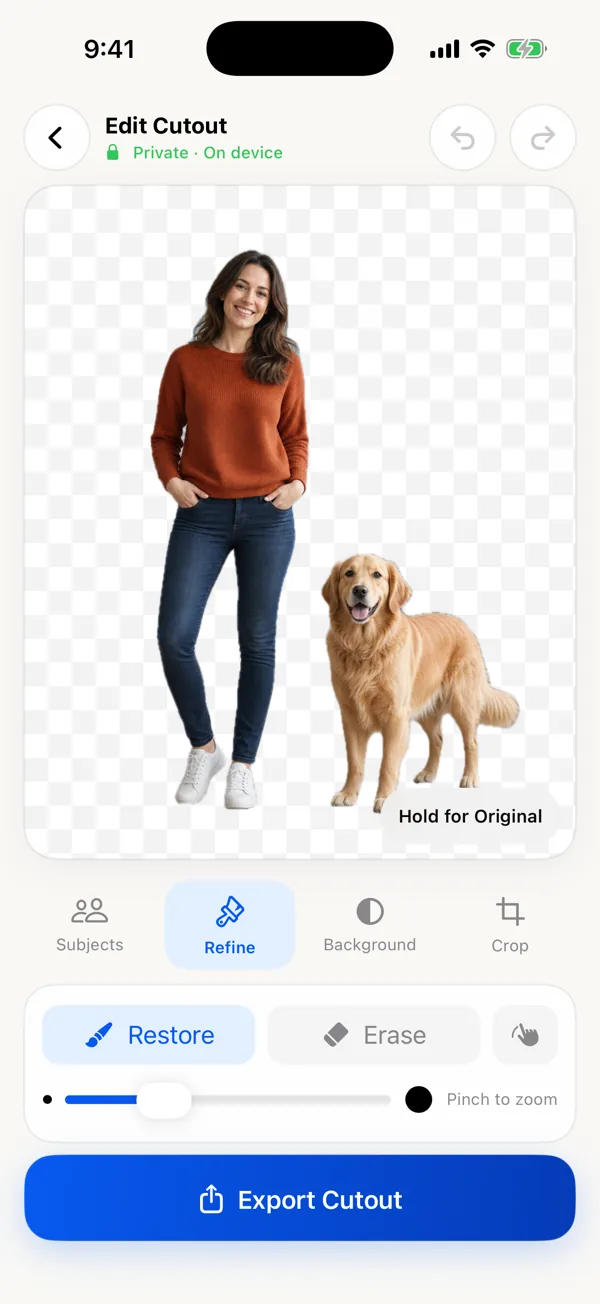
Import your photo and select the subject you want to keep. Zoom in and use Restore or Erase where the automatic cutout missed an edge. Choose a transparent background and export as PNG. JPEG cannot preserve transparency, so choose the format that matches where you will use the cutout.
Give a product photo a plain white background
Photograph the item in soft, even light and keep the whole item in frame. Select it, repair the mask around handles or narrow gaps, then choose a white background. Pick the crop that suits the destination and inspect the result before exporting. The cutout does not correct an out-of-focus product or create a new camera angle.
Keep two people or a pet in the same cutout
Select the foreground subjects that belong in the finished image. Inspect hair, fur, paws, and overlapping edges. Restore any detail removed by the automatic selection and erase unwanted background areas. Compare against the original so you do not accidentally remove part of a subject.
Access and device requirements
$3.99 one-time purchase in the U.S. App Store. No subscription, no in-app purchases, no ads. All editing tools and full-resolution export are included. Prices in other storefronts are set by Apple's regional pricing and may differ.
iPhone and iPad; requires iOS or iPadOS 17.0 or later